
Getting Started · about 10 minutes
Your first auto-battler
Five steps from a fresh import to a new enemy with its own power, fighting your heroes. No code.
Hub › WelcomeYou'll make Goblin King, a boss that poisons whoever it hits, and watch him fight the pack's heroes. Everything you make lands in your own folder under Assets, outside the kit.

TipThe Hub can walk you through these same five steps: on Welcome, press Start the tour. A bar at the top of every page names the next step, and Show me jumps to the right page and highlights what to press.
Start your game
The Hub opens by itself after import (or Tools › AutoBattleKit › Hub). On Welcome, under New game, keep Classic selected, type a name, and press Create and play.
The kit copies Classic's 8 heroes, 16 enemies, 14 items and 7 statuses into
Assets/<your name>, each in its own folder, with a database, and plays your battle scene, My Battle. The Welcome page now shows your game with Play, Edit content and Balance, and a checklist that ticks itself off as you follow these steps.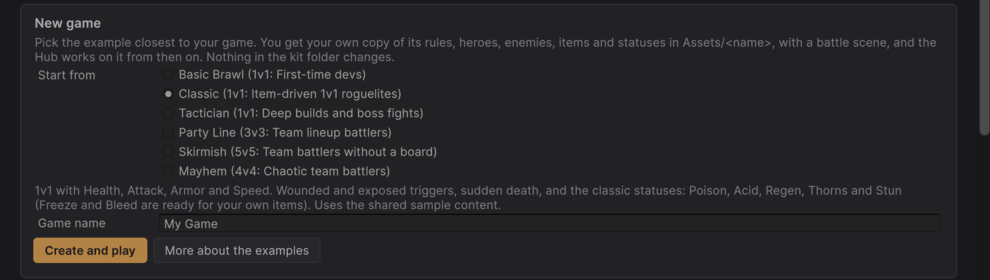
Welcome > New game: pick an example, name your game, Create and play. 
Press Play
A hero and an enemy fight. Use the Hero and Enemy arrows to pick any of them, and read the trigger log on the right: every line says which item, status or passive caused it.
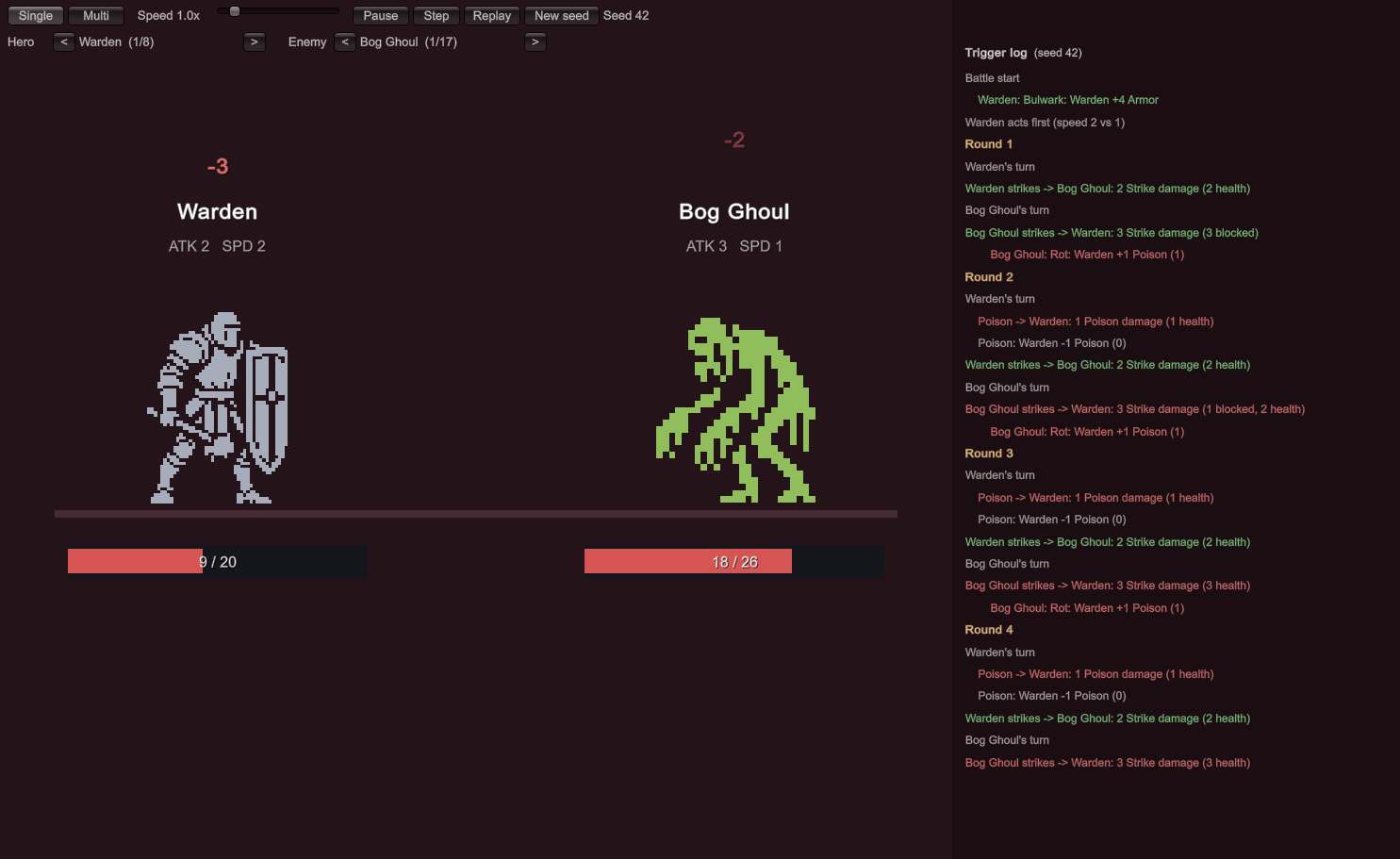
My Battle: pick a hero and an enemy with the < > arrows. Press Play again to stop.

Make an enemy
In the Project window open
My Game/Content, right-click the Bosses folder and choose Create › AutoBattleKit › Boss. Name it Goblin King.He already has placeholder art, five colour variants and a prefab in his own folder, and he's in your database. (Want real art? Hub > Enemy & Class Creator has a sprite library with a Goblin King: click it instead of creating the boss by hand, then rename it.) In the Inspector set Health 40, Attack 4, Speed 2.
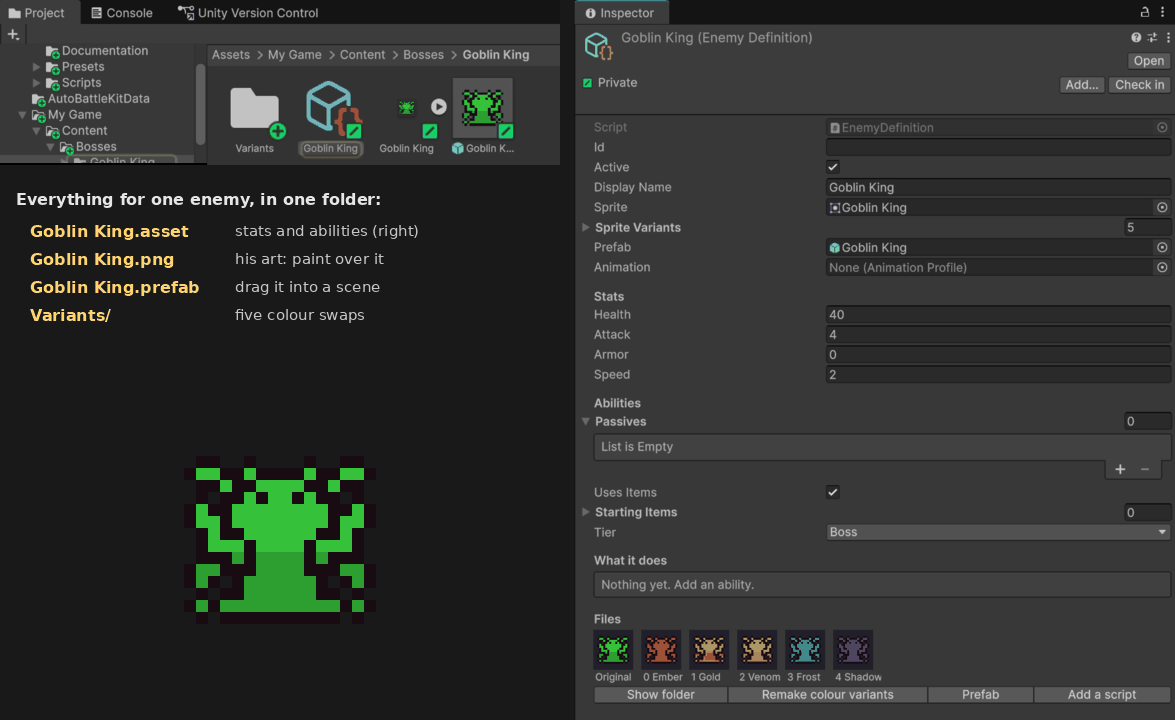
Goblin King's folder and Inspector. The Files box shows his art and colours. 
Give him a power
Open Hub › Content, pick Enemies and click Goblin King. In the Give it a power card choose When On hit, Do give a status, To the enemy, Status Poison, Stacks 2. The line underneath reads On hit: give the enemy 2 Poison. Press Add to Goblin King.
That sentence is also his tooltip in your game. The power appears under Passives in the Inspector below, where you can fine-tune it (or build one from scratch there: Passives > +, then a Trigger, Conditions and Effects).
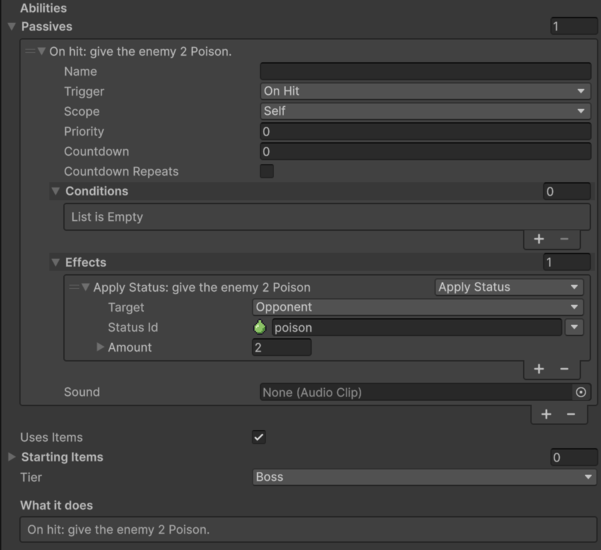
Give it a power: when, only if, do, and the sentence it makes. 
Fight him
Press Play on the Welcome page (or Play in the editor with My Battle open) and click the Enemy arrow until Goblin King comes up. Watch the green Poison stacks climb on your hero.
How strong is he? Open Hub › Balance Lab and press Run simulation: every hero fights him hundreds of times, and each cell shows the hero's win rate.
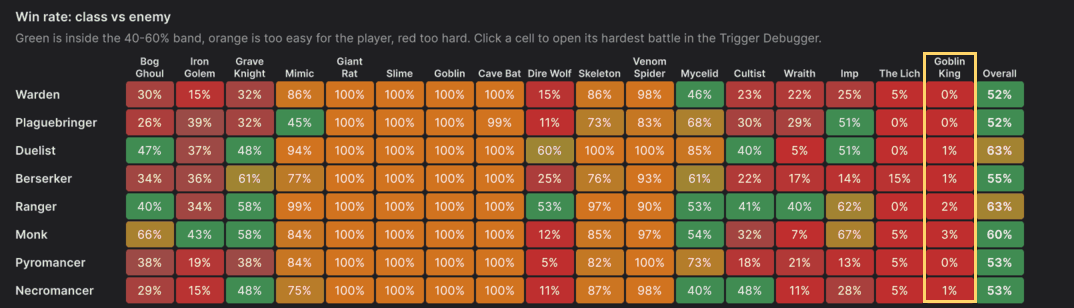
Green is fair, orange too easy, red too hard. The Goblin King column is red: poison on every hit is brutal. He's too strong. Try Health 20, Attack 2 and Speed 1, then press Run simulation again: his column swings to about 50% overall, and the small number in each cell shows how far it moved. Click any cell to replay its hardest battle step by step in the Trigger Debugger.
TipChange a number in the Inspector, press Play again, and the next battle uses it. Everything you edit is saved in the asset.
Keep going
 Give a hero an itemCreate an item, give it an ability, and add it to a hero's Starting Items.
 Add statusesAdd Burn, Freeze or Ward from the library in one click.
 Change the rulesTwo strikes a turn, deaths after reactions, sudden death.
Build a runChain fights, chests, shops and bonfires into an adventure.
Change the rulesTwo strikes a turn, deaths after reactions, sudden death.
Build a runChain fights, chests, shops and bonfires into an adventure.