
Tuning
Balance Lab & debugger
Run thousands of battles in a few seconds to see who wins, then step through any one of them to see why.
Hub › Balance Lab · Trigger Debugger · PerformanceBalance Lab
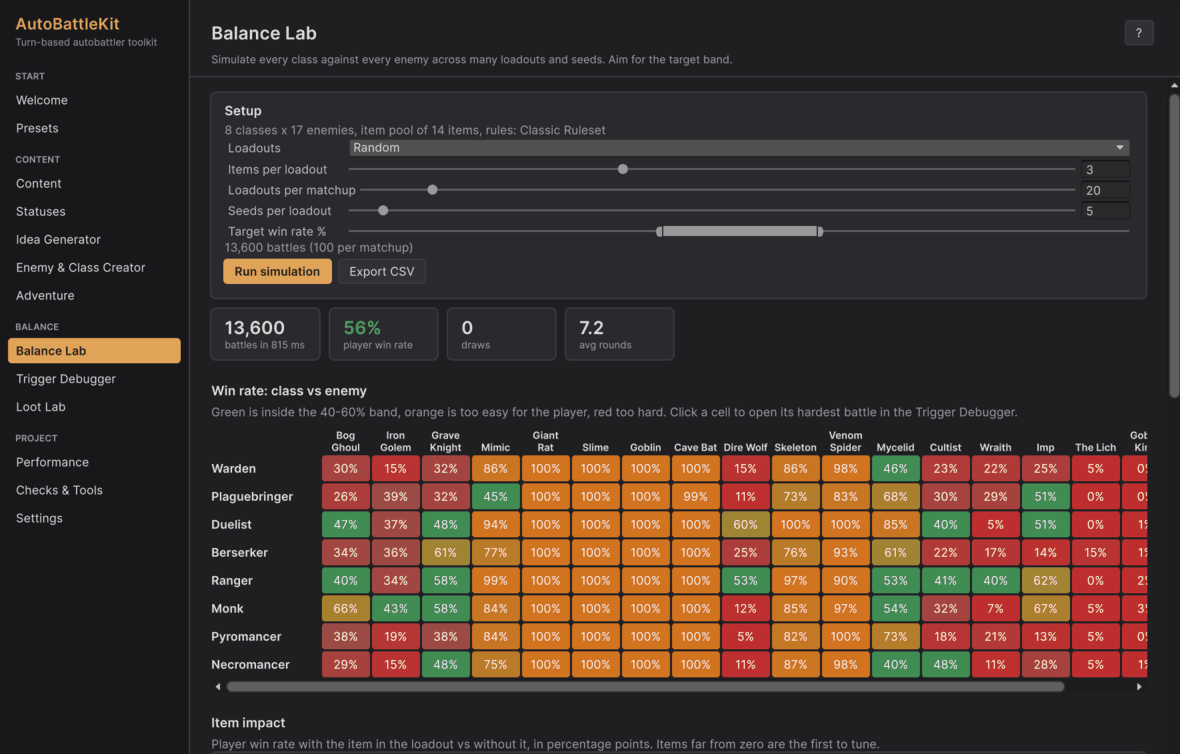
Hub > Balance Lab runs every class against every enemy across random loadouts and seeds, on all CPU cores, with logging off (outcomes are identical to logged battles, just faster). Under a team preset it runs every team against every encounter instead, dealing each loadout across the team front to back.
- Choose Loadouts (None, Fixed, Random), items per loadout, loadouts per matchup and seeds. The estimate shows the battle count.
- Set the target band (for example 40-60% player win rate).
- Run simulation. A few thousand battles take a second or two.
Reading the report:
- Heatmap: green cells are inside the band, orange too easy for the player, red too hard. After a second run, small numbers show the change.
- Item impact: win rate with the item in the loadout minus without it, in percentage points. Tune the items furthest from zero first.
- Battle length: a histogram of rounds. Long tails mean stalls; check sudden death.
- Outliers: longest battles, fastest wins and losses, draws. Debug opens any of them in the Trigger Debugger.
- Export CSV writes every battle for a spreadsheet.
A worked example: if one class sits far above the band against one enemy, click that cell to open its hardest battle in the Trigger Debugger, find the ability doing the work (the log names every source), weaken it (for example Every Nth Turn 3 to 4), and run the Lab again. The small numbers in each cell show how far it moved.
Don't expect the pack's own content to sit in the band. Its enemies are spread on purpose, like the stages of a run: heroes always beat the Giant Rat, Slime, Goblin and Cave Bat, win about a quarter of fights against the Cultist, Wraith and Dire Wolf, and rarely beat The Lich (a boss, about 3%). Aim for the band per stage with your own content: first fights easy, bosses hard.
Trigger Debugger
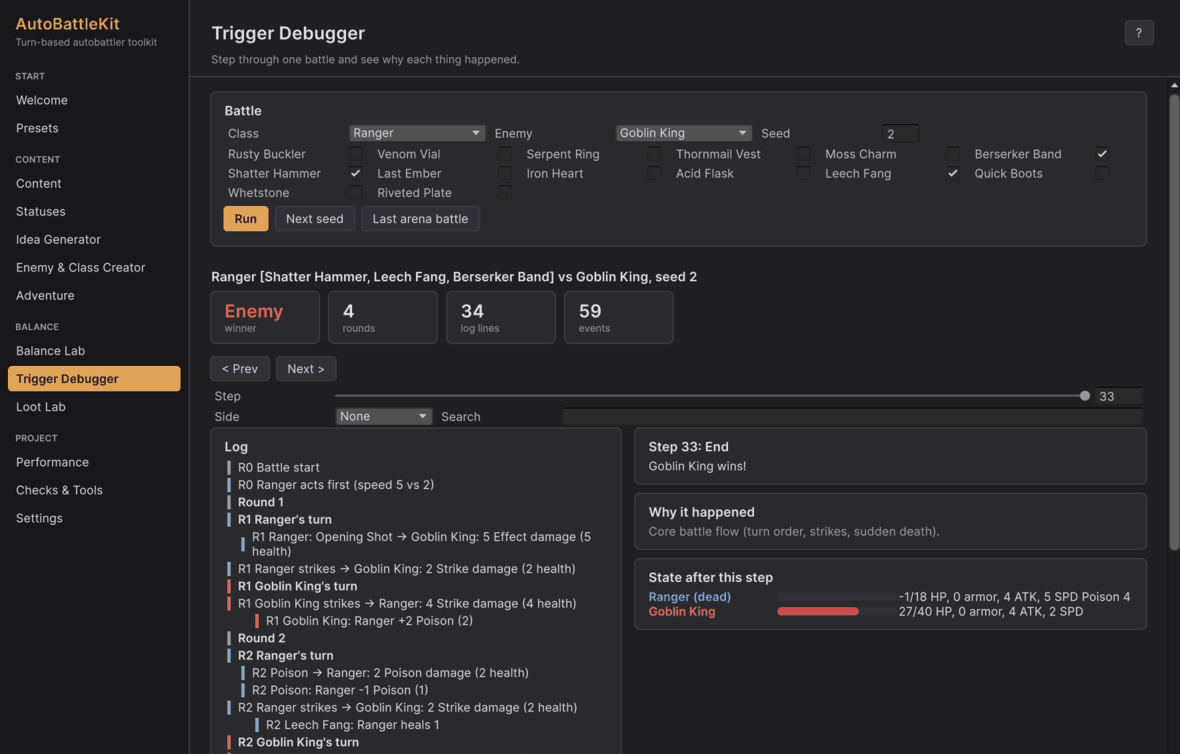
Hub > Trigger Debugger replays one battle with the full log.
- Pick a class, enemy, items and seed (a team and an encounter under a team preset) and press Run, or open a battle from the Lab, or press Last arena battle after watching one in play mode.
- Step slider (or Prev/Next) moves through the battle; later lines are dimmed.
- Click a line to see why it happened (the chain of events that caused it, up to the core battle flow), what it triggered, and the state of every unit at that moment.
- Filter by side, search text, and jump to the item or passive asset that caused a line.
Every log entry records the event it happened in (BattleLogEntry.EventId), and every event records its parent (BattleEvent.ParentId), so you can build the same cause tree in your own tools from BattleResult.Events.
Performance
Hub › Performance measures battles per second and memory per battle with your own content and rules: one at a time with the log (what your players watch), without it, and in parallel batches (what the Balance Lab uses). A typical battle takes well under a millisecond, so compute it when the fight starts and animate the log afterwards.
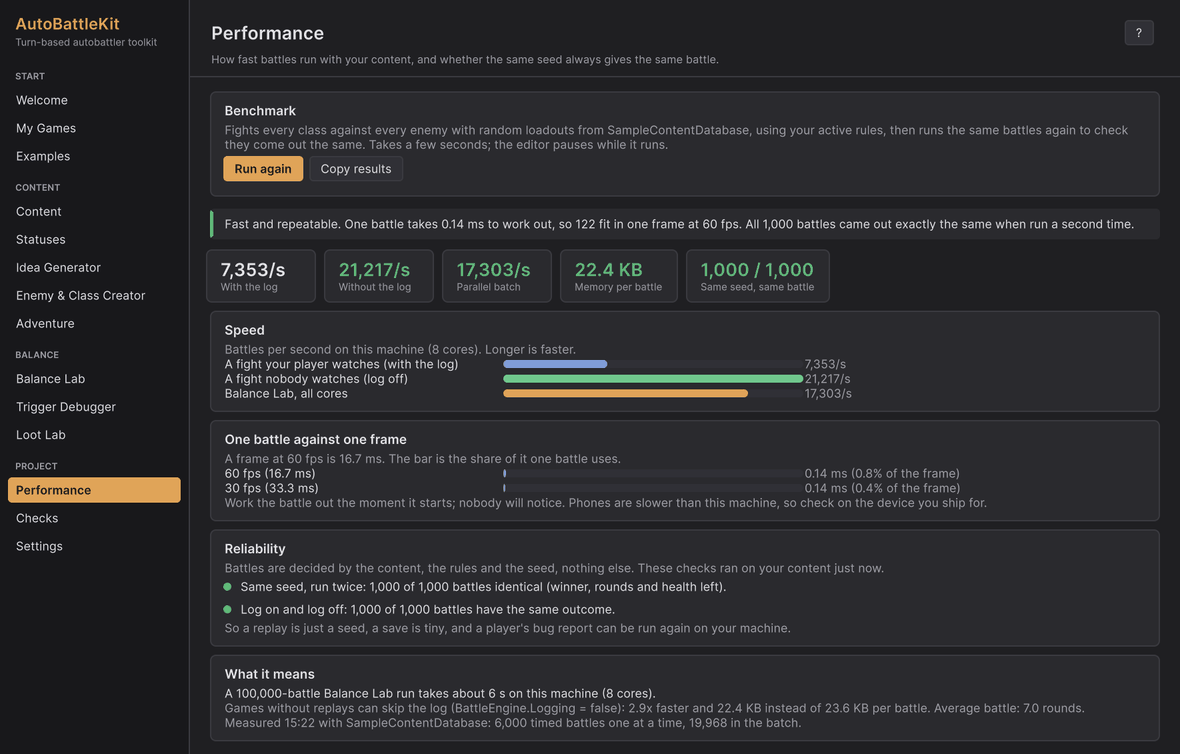
The first line is the verdict: how long one battle takes, how many fit in one frame at 60 fps, and whether every battle came out the same when it was run again. Below it, Speed and One battle against one frame show the numbers as bars, and Reliability lists two checks run on your content: the same seed twice (winner, rounds and health left must match), and log on against log off. A mismatch means a custom block reads something outside the battle, such as the clock or UnityEngine.Random; use c.Engine.Rng in your blocks. Copy results puts the numbers on the clipboard as text and says so.
Checks
Hub › Checks answers three questions.
- Check my content looks through the active game for things that would break or do nothing in a battle and lists them on the page, each with Open.
- Is the kit healthy here? runs the kit's own tests in your project. Run it after a Unity upgrade. The result is one line in the Console.
- Did I change how battles play out? is for people who edit the engine's code: the engine fingerprint runs 11,520 battles and compares them with the shipped results.
Repair the kit's samples rebuilds the kit's own content and demo scenes if something in the kit folder was changed. Your games are not touched.